Most people asking how to extend your phone battery life actually have two different problems. The first is today’s runtime: your phone dies by noon, and you want hours back now. The second is battery lifespan: the charge that lasts until dinner in year one only reaches 60% in year three, and the phone runs slow. They need different fixes, and this guide separates them, with the exact menu paths for iPhone, stock Android, Pixel and Samsung One UI.
A worn-out battery is also a hardware problem, not a settings problem. If your battery health sits below 80%, no amount of tweaking will fix it, and part nine tells you when to stop tweaking.
Table of Contents
- What You Need
- How to Extend Your Phone Battery Life Step by Step
- 1. Check What Is Draining Your Battery
- 2. Reduce Screen Brightness and Auto-Lock Time
- 3. Turn Off Unneeded Wireless Connections
- 4. Limit Battery-Hungry Notifications and Background Activity
- 5. Use Low-Power or Battery Saver Mode
- 6. Charge Your Phone the Right Way
- 7. Keep the Battery Cool and Dry
- 8. Restart and Update Your Phone
- 9. Replace the Battery When Settings Cannot Fix the Problem
- Common Mistakes
- Frequently Asked Questions
- How much can I realistically improve my phone battery life?
- Is it safe to charge my phone overnight?
- How do I find out which app is draining my battery?
- What should I do if my phone battery is swollen?
- When should I replace my phone battery?
- Conclusion: What to Do First
What You Need
No special equipment, no apps you have to buy. Everything here uses settings your phone already has.
What does help: knowing which system you are running, because the labels differ more than most guides admit.
- On iPhone: Settings, then General, then About, then Software Version. Battery menus live under Settings > Battery.
- On Samsung One UI: Settings, then About phone, then Software information. Battery settings are under Settings > Battery.
- On stock Android or Pixel: Settings, then About phone, then Build number.
Keep the charger and cable you use daily nearby, since two of the steps are about charging behaviour rather than software. It also helps to note your screen timeout and whether your phone gets warm while charging, because both of those explain a surprising share of bad battery days.
How to Extend Your Phone Battery Life Step by Step
Work through these in order. The first one usually finds the biggest problem, and everything after it is quick once you know what is actually eating your charge.
1. Check What Is Draining Your Battery
Open the battery report before you change anything, so you can measure instead of guessing. The report names the apps and system features using the most power over the last 24 hours or so, and it usually takes under a minute to read.
On iPhone, go to Settings > Battery and tap Battery Usage. On a Pixel or other stock Android phone, go to Settings > Battery > Battery usage. On Samsung, Settings > Battery > Battery usage gives the same picture.
Look for one app sitting far above everything else. That is usually the culprit, and closing it or restricting its background activity is worth more than the next five tips combined.
How to tell it worked: check the report again the next day. The app that was at the top should have moved down, and your battery should have lasted noticeably longer.
2. Reduce Screen Brightness and Auto-Lock Time
The display is usually the single biggest power user on any phone, because it stays on while you read, scroll and watch. Most screens draw more power at maximum brightness than everything else combined.
Turn on the automatic option: iPhone has it under Settings > Display & Brightness > Auto-Lock, along with True Tone. Android has Adaptive Brightness at Settings > Display > Adaptive brightness. Both adjust the backlight to the room you are in.
Next, shorten the screen timeout. Thirty seconds is usually a good middle ground between wasted screen-on time and annoying blackouts.
Dark Mode and Dark theme help too, though the saving is smaller than people expect on most phones. iPhone puts it in Settings > Display & Brightness, Android in Settings > Display > Dark theme.
If you have an Always-On Display, decide whether you need it. It uses power all day to show a static clock, so switching it off at bedtime is a reasonable trade.
How to tell it worked: note your screen-on time in the battery report before and after a day of changes. Most people see 10 to 20 percent less screen time within a week.
3. Turn Off Unneeded Wireless Connections
Every radio your phone searches for costs power even when it finds nothing. This is less about Bluetooth and Wi-Fi themselves and more about what happens in a bad signal.
Weak signal is the underrated drainer. If you are in a basement, a rural area or a lift, your phone pushes its transmit power up to stay connected, and that burns charge fast. If your phone is dying quickly and you already tried step one, check whether the signal is the pattern.
Some practical rules. Use Airplane Mode when you are out of coverage with no intention of making a call. Turn Bluetooth off if you are not using a car, watch or headset. Turn off Personal Hotspot when nobody is sharing your data. Set Location Services to While Using the App rather than Always for apps like weather or fitness trackers that do not need a background fix on you.
One nuance: Bluetooth Low Energy costs very little, so leaving a smartwatch paired is usually fine. Toggling Wi-Fi off does not save much on modern phones either, because the phone drops to low-power Wi-Fi scanning on its own.
How to tell it worked: compare the 24-hour report on a normal day against one from a day you were out of coverage.
4. Limit Battery-Hungry Notifications and Background Activity
Apps waking on the background to check messages and sync are behind a surprising amount of overnight drain. Cutting the noise helps twice, once by waking the radio and once by lighting the screen.
Start with notifications. On iPhone, Settings > Notifications, then turn off Allow Notifications per app for anything that is not time-sensitive. On Android, Settings > Notifications, then tap an app to see its categories.
Then handle background refresh, which is the setting people miss on iPhone: Settings > General > Background App Refresh. Set it to Off for apps that can sync when you open them, and leave it On for mail and messaging.
On Android, per-app battery use is under Settings > Apps, choose the app, then Battery. Set anything that does not need live updates to Restricted, which stops it from waking when the screen is off.
Samsung users get a stronger version of this: Settings > Battery > Background usage limits, where you can put apps into Deep Sleep lists so they only sync when you open them. Pixel users have Settings > Battery > Adaptive Battery, which learns your habits and does something similar automatically.
How to tell it worked: the overnight percentage loss between midnight and 7am should drop noticeably.
5. Use Low-Power or Battery Saver Mode
This is the fastest fix available and almost nobody leaves it on. It works by trimming background activity, not by slowing anything you are actively using.
On iPhone, tap the battery icon in Control Centre or go to Settings > Battery > Low Power Mode. On Android, Settings > Battery > Battery Saver. On Samsung, use Settings > Battery > Modes and Routines > Battery Saving mode, which can also be triggered by a battery level you set.
While it is on, phones typically limit background app refresh, dial down screen brightness, switch off some visual effects, reduce auto-lock courtesy features, and on some Android models switch off background app installs and autorotate. You still get calls, texts and your apps, and performance stays the same for anything you open deliberately.
The honest limitation is that on some Android models, it also turns off visual smoothness, so scrolling looks less refined. Most people turn it on automatically below 20 percent and leave it that way.
How to tell it worked: a heavy-use day usually gains 15 to 25 percent more screen time with it enabled.
6. Charge Your Phone the Right Way
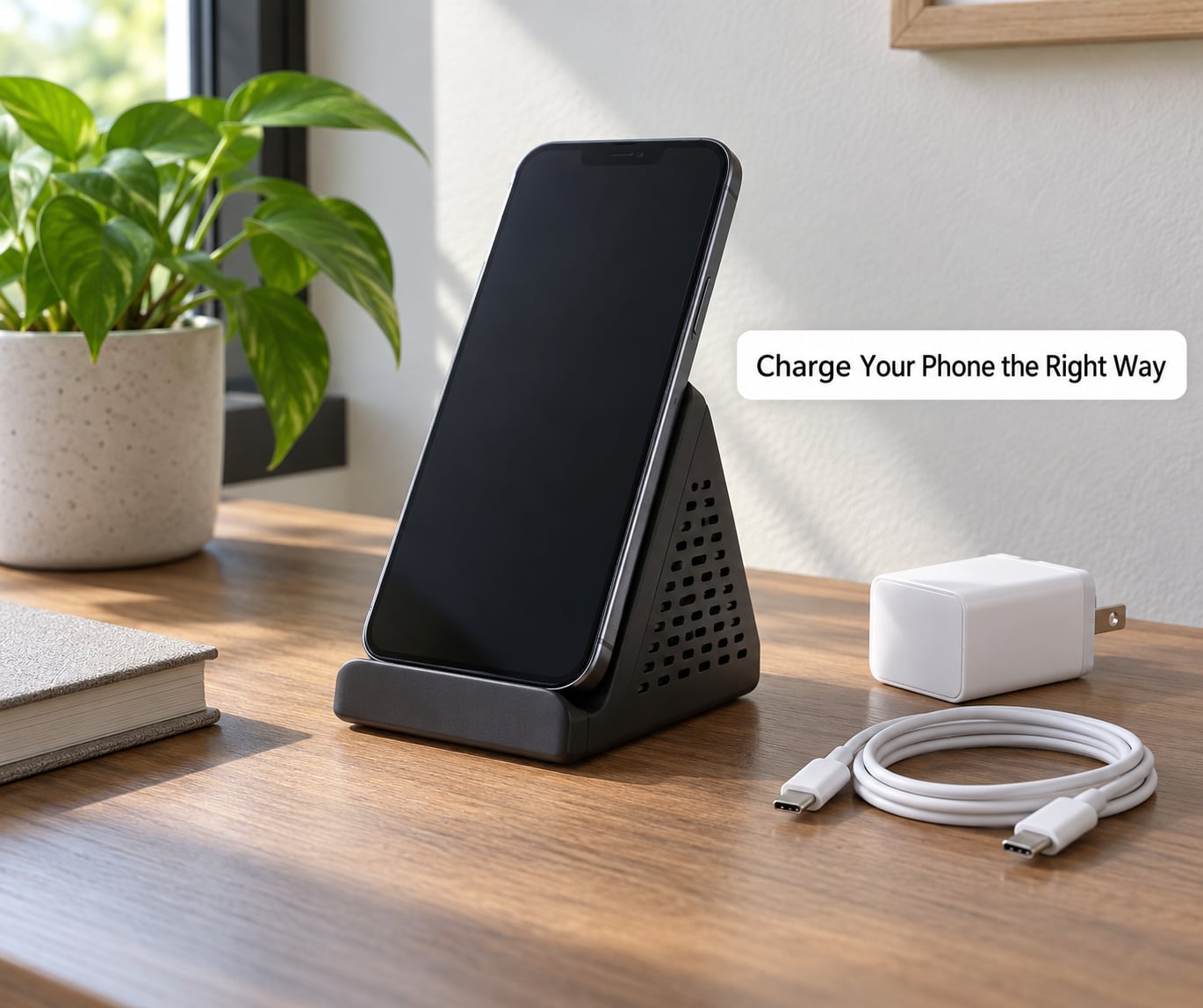
Charging habits matter far less than most articles imply, because modern phones manage charge themselves. What they do not manage is heat, and they cannot protect a cell that sits at full voltage for hours on end.
Use the charger that came with the phone, or a certified replacement that supports the same standard. USB Power Delivery handles fast charging on iPhone and modern Android, and PPS is the comparable standard on many Samsung and Pixel devices. A cheap no-name adapter with a frayed cable is the most likely cause of charging that stops early or refuses to fast-charge.
Charge on a hard, open surface. A nightstand under a pillow blocks ventilation, and heat is what actually shortens a battery’s life.
Once you are at 100 percent, unplug if the phone is idle. Overnight charging is not the disaster folklore says it is, because the phone stops drawing current and stops charging, but the cell sits pinned at peak voltage all night. Most people use Optimized Battery Charging or Adaptive Charging instead, which hold the phone near 80 percent and finish the last 20 percent when you are about to wake up. Both are on by default once you charge regularly overnight.
How to tell it worked: charging that used to bounce off at 80 percent on a hot night, or a phone that stayed warm in your hand while plugged in, usually means heat or a weak cable, not a full battery.
7. Keep the Battery Cool and Dry
Heat is the single biggest enemy of a lithium-ion cell. On top of shortening its life, sustained heat causes permanent damage, and in rare cases a battery can swell or fail dangerously.
The common triggers are predictable: leaving the phone in a parked car on a hot day, direct sun on a screen, charging under a blanket, gaming or recording video while charging, and using a thick case while fast charging. Reddit battery threads reach the same conclusion repeatedly, and it matches the manufacturer guidance.
Moisture is the other half. A cable or port with salt residue from sweat or beach sand conducts current and causes corrosion and heat, which is a fire risk. If your charging cable or the port smells burnt, stop using that cable immediately.
Practical habits: take the phone out of the case while fast charging, prop it somewhere with airflow, avoid heavy gaming while plugged in, and never leave it on a dash or in a glovebox in summer.
If the back of your phone bulges, the screen lifts at the edges, or the device is too thick to sit flat, stop charging it and stop using it. Take it to the manufacturer. Do not press the screen down and do not attempt to open it yourself.
8. Restart and Update Your Phone
A restart clears stuck background processes that keep waking the radio for no reason, and it takes 30 seconds. On iPhone, swipe up from the bottom, swipe an app card up to close it, then hold the side button and slide to power off, then turn it back on. On Android, hold the power button and tap Restart.
Keep your software current too. Updates fix real battery bugs, and several major releases have added battery diagnostics and charging protections that did not exist before.
Never interrupt an update. If power is cut mid-install, the phone can get stuck or lose data, so charge to at least 50 percent and keep it plugged in on stable power.
How to tell it worked: if a phone drains at a steady, believable rate after a restart and an update, the hardware is probably fine.
9. Replace the Battery When Settings Cannot Fix the Problem
At some point the cell itself is worn out, and no setting on the phone will change that. This is the part most battery guides never say clearly enough.
The signs are consistent. Your phone gets noticeably shorter runtime than the day you bought it, it suddenly drops 10 percent or more overnight, it shuts down at 20 percent instead of 1 percent, it takes much longer to charge, or it gets hot while doing light tasks.
On iPhone, Settings > Battery > Battery Health & Charging shows Maximum Capacity as a percentage, along with cycle count. Apple treats anything below 80 percent as the point where service is recommended, and iOS may reduce performance to compensate.
On Android, most manufacturers do not show a capacity percentage, which is why people ask whether 77 percent health is bad. Where you do have the number, treat 90 percent and above as healthy, 80 to 89 percent as normal wear, and below 80 percent as time for service. On Samsung, the Members app and the built-in hardware diagnostic are the place to check, and third-party capacity tools can read a rough figure on other models.
Get it replaced by the manufacturer or an authorised centre. A worn battery also tends to throttle, so a swap is often the cheapest way to make an older phone feel fast again, and it costs less than a new device.
Common Mistakes
Most counterproductive battery advice falls into the same handful of buckets. Here is what to stop doing, and what to do instead.
Keeping the screen at maximum brightness all day. Auto-brightness exists for a reason, and lowering the brightness by 30 percent is often more noticeable than anything else you change.
Allowing every app to send notifications. Each notification wakes the display and the radios. Trim the list to what you would genuinely miss.
Charging with a damaged or cheap adapter. Bent connectors, frayed cables and no-name bricks generate heat and unpredictable current. Use the supplied or a certified charger.
Draining the battery to 0 percent on purpose. That is nickel-cadmium era advice from before the memory effect existed. Deep discharge stresses a lithium-ion cell and gives you nothing in return, which forum users have largely worked out.
Force-closing every app constantly. Swiping apps away stops them holding their state, and modern phones then relaunch and re-sync them, costing more power than leaving them alone. Close the ones that are genuinely misbehaving and stop there.
Charging overnight with the phone under a pillow. Heat does the damage. Keep the area ventilated.
Buying a new phone before checking battery health. A battery service is often far cheaper, and the good news is that a swap makes an older phone feel new again.
A few habits worth more than the rest. Keep your charge roughly between 20 and 80 percent for daily use. Turn on Optimized Battery Charging or Adaptive Charging so you stop thinking about it. Take the case off while gaming or fast charging. Do the screen-time fix once, then leave it. And check the battery report every couple of months, since your habits and apps change faster than you do.
Frequently Asked Questions
How much can I realistically improve my phone battery life?
On a phone that is two years old and running warm with default settings, most people gain 30 to 50 percent more screen time by turning on Low Power Mode or Battery Saver, shortening the screen timeout and trimming notifications. On a recent phone with healthy hardware, expect closer to 10 to 20 percent. If your battery health is below 80 percent, no settings change will recover more than a small amount, and a battery replacement delivers far more.
Is it safe to charge my phone overnight?
Yes, generally. Your phone stops drawing current once it is full, so it does not overcharge the way old nickel-cadmium batteries did. The nuance is that the cell still sits at peak voltage for hours, which adds stress over time. Turn on Optimized Battery Charging or Adaptive Charging, leave the phone on a hard ventilated surface rather than under a pillow, and replace any cable that feels hot or smells burnt.
How do I find out which app is draining my battery?
Open the battery report. On iPhone go to Settings, then Battery, then Battery Usage. On Android go to Settings, then Battery, then Battery usage. Samsung shows the same page under Settings, then Battery. The list covers roughly the last day and shows time on screen and background activity. Anything far above the rest is worth restricting, and reopening the report the next day tells you whether your fix worked.
What should I do if my phone battery is swollen?
Stop charging it and stop using it. A swelling battery means gas has built up inside the cell and it cannot be trusted with heat or impact. Do not press the screen down, do not puncture it, and do not take it apart yourself. Keep it away from anything flammable and hand it to the manufacturer or an authorised repair centre, which is the only safe route to a replacement.
When should I replace my phone battery?
Replace it when your battery health drops below 80 percent, or earlier if your phone shuts down at 20 percent, charges unusually slowly or throttles in ordinary use. On iPhone, Settings, then Battery, then Battery Health and Charging gives you the percentage and cycle count directly. On most Android phones there is no built-in percentage, so check the manufacturer diagnostic app or use a capacity tool. Expect two to four years of normal use before this point.
Conclusion: What to Do First
If your phone does not last the day, start with step one. Open the battery report, find the one app eating your charge, and restrict or close it. Turn on Low Power Mode or Battery Saver, drop the screen timeout to 30 seconds and check that auto-brightness is on. Trim notifications, then re-read the report the next day to confirm the change held.
If you are more worried about the long haul, turn on Optimized Battery Charging or Adaptive Charging, keep your daily charge between 20 and 80 percent, charge on an open surface with a certified adapter, and keep heat away from the phone as much as you can. Check battery health once a year rather than guessing from runtime.
That is the whole honest answer to how to extend your phone battery life. The settings changes buy you hours today, the charging and temperature habits buy you years, and once maximum capacity falls below 80 percent, no setting will bring it back.