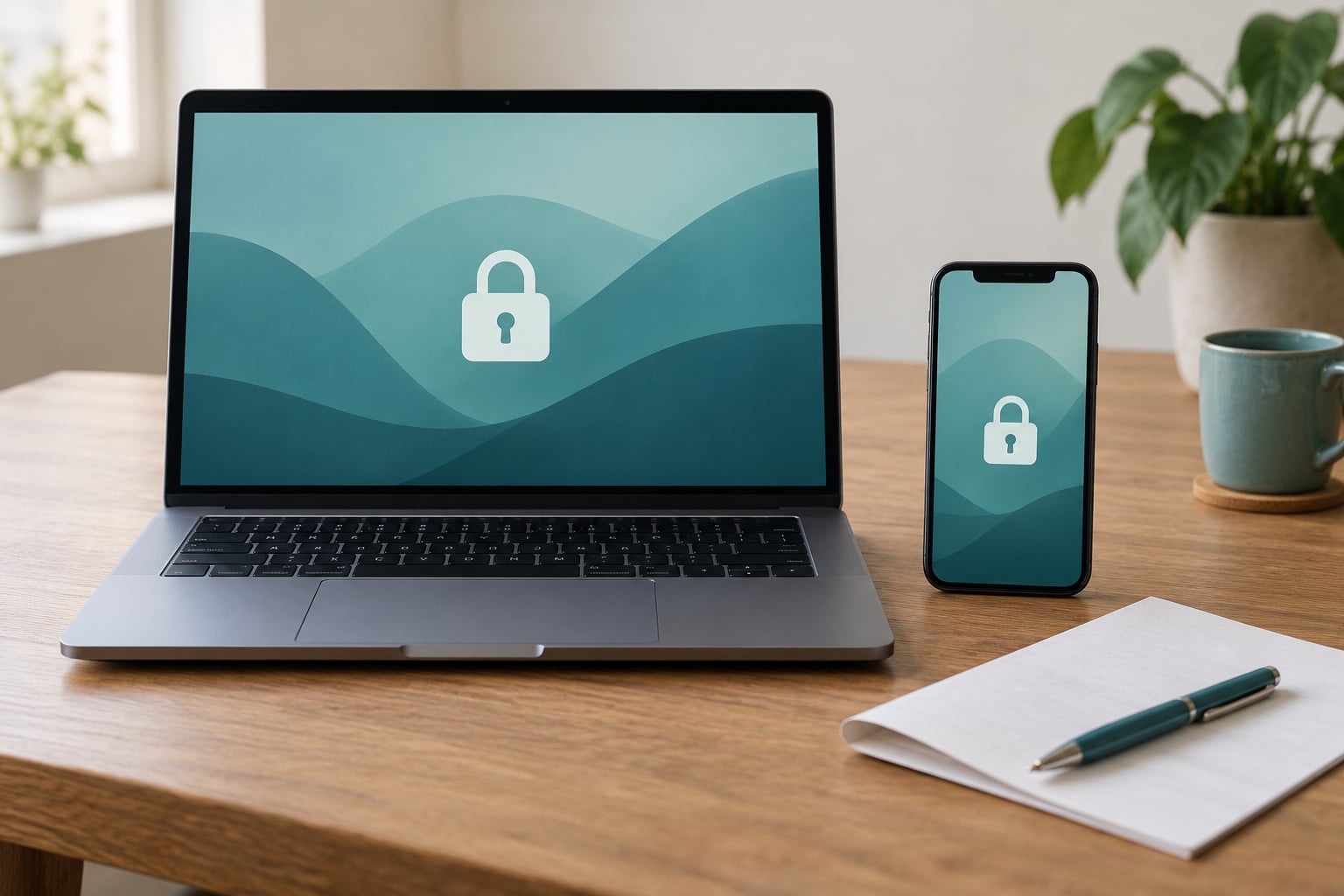
A password manager stores every login you own in one encrypted vault, so the only thing you have to remember is a single master password. Setting one up takes about 30 minutes: pick a provider, create your account and master password, install the browser extension and phone app, then import your existing passwords and switch off the ones you reuse.
I’m putting this in the same order every time because the sequence matters. Decide on the manager before you create anything, secure the account before you import a single credential, and clean up the old copies at the end rather than the middle.
Whatever you choose, the master password is the one secret that never goes into the vault, and forgetting it is the one failure mode nobody can fix for you. Plan for that before you start.
Table of Contents
- What You Need
- Step-by-Step: Set Up Your Password Manager
- 1. Choose a Password Manager
- 2. Create Your Account and Master Password
- 3. Set Up Extra Account Security
- 4. Add or Import Existing Passwords
- 5. Install the App and Browser Extension
- 6. Turn On Autofill and Test the Vault
- 7. Update Important Accounts First
- Common Mistakes and How to Fix Them
- Frequently Asked Questions
- Do I really need a password manager?
- Is it safe to store all my passwords in one place?
- Can a password manager be hacked?
- What happens if I forget my master password?
- Is my browser’s built-in password manager good enough?
- How do I import passwords from Chrome into a password manager?
- Conclusion: Start With One Secure Vault
What You Need
Five things. None of them are exotic, and every one of them matters more than the features you’re comparing between providers.
- The device you’ll use most. Your laptop, your phone, whichever one you check first. Install the app there before you install it anywhere else.
- An email address you already own. Every manager uses one as the account identifier, and it’s also the reset channel if something goes sideways.
- A strong master password. A passphrase of at least 16 characters, unique to this one account, never used anywhere else.
- A second way in. An authenticator app on your phone is the practical option; a hardware security key is stronger if you already own one.
- Your current passwords, somewhere. Either a running list or an export from your browser. Chrome, Safari, Edge, Firefox and the built-in Google, Apple and Microsoft managers can all produce one.
Set aside 20 minutes for the account and the security settings, then another 20 minutes for the import and cleanup. The rotation work in the final step is the slow part, and it’s the part that actually removes your risk.
Step-by-Step: Set Up Your Password Manager
Seven steps, in order. Each one has a way to confirm it worked, so you’re not guessing at the end whether the thing is set up properly.
1. Choose a Password Manager
Compare managers on six things: whether encryption happens on your device before anything syncs (usually called zero-knowledge architecture), which platforms and browsers they support, how reliably autofill works, whether they offer secure sharing and emergency access, what the recovery story is if you forget the master password, and what the paid tier adds over the free one.
Cloud managers like Bitwarden, 1Password, Proton Pass, Dashlane and Keeper sync across your devices automatically. Local managers like KeePassXC or AliasVault keep a single encrypted file on storage you control, which suits people who don’t want their passwords sitting on someone else’s server and who can commit to backing that file up.
Built-in browser managers are fine for convenience and weak for anything else. They generally don’t sync across non-browser devices, they don’t generate and store passwords well, and if the browser profile is wiped the credentials go with it.
Whatever you pick, look for an independent review that isn’t written by the vendor. Some readers ask why one large provider comes up less often than it did a few years ago, and the usual answer is breach history and how openly it was handled, plus whether the client is open source and auditable. Check the current reporting rather than trusting a forum memory from three years ago.
How to tell it worked: you have a named provider, a subscription decision, and a rough sense of what recovery looks like before you create anything.
2. Create Your Account and Master Password
Sign up with your email address, then create the master password. Build it as a passphrase: four or five unrelated words joined together, at least 16 characters in total. “cobalt orchard ladder museum” is stronger and easier to recall than any mangled word with digits and symbols tacked on.
Three rules. It has to be unique to this one account. It cannot contain your name, your street, your dog or your birthday, because those are the first things any attack script tries. And it must never go in the vault itself, a note app, an email to yourself, or a phone photo.
The strength meter on the signup screen is a rough guide, not a verdict. Length beats symbol soup: a long passphrase beats a short scrambled password every time.
How to tell it worked: you can say the master password out loud correctly from memory, ten seconds after creating it, and it is written nowhere online.
3. Set Up Extra Account Security
Turn on two-factor authentication before you import anything, because everything you import is protected by this one login. The practical choice is an authenticator app generating a six-digit code. A hardware security key is stronger still, and some managers support several keys plus an app as a fallback.
Save the recovery codes the service shows you. Print them or write them on paper and put them somewhere physically secure, because that sheet is the only thing standing between you and a locked-out vault.
Now set up the recovery path, which is the part people skip. Write the master password on paper and store it somewhere genuinely safe, such as a locked drawer or a home document safe, in case you need to re-enter it on a device you have not used before. If the manager offers emergency access, nominate someone you trust with a waiting period.
What a vault cannot do for you: it does not stop keyloggers or malware that read your screen, it cannot recover a master password you never wrote down, and it does not protect accounts whose credentials sit somewhere else entirely.
How to tell it worked: you have an authenticator with a working code, a printed recovery sheet, and an offline copy of the master password in a secure physical location.
4. Add or Import Existing Passwords
Entering 150 passwords by hand is how people give up. Import instead. Inside the manager’s settings there’s an import option, and most services read a CSV export plus direct connections to the common sources.
For Chrome, open chrome://password-manager/settings and use the export function there, which writes a CSV to your downloads folder. For Firefox, the logins are at about:logins. On a Mac, iCloud Keychain logins come out of System Settings. Edge and the Microsoft Password Manager have their own export points. Upload the file, wait for the import to finish, and check the count against what you had.
Afterwards, open a handful of imported entries and read them. Look for duplicates where the same account exists twice under different URLs, and for old entries pointing at services you stopped using. A duplicate that matches a site you visit is harmless but untidy; a duplicate with a stale password is the one that will get you locked out.
Then delete the CSV. That file is a plaintext copy of every credential you own, and it is currently sitting in your downloads folder. Empty the trash afterwards. This is the loose end that most guides skip and that forum readers ask about constantly.
How to tell it worked: your entry count roughly matches the source, a few known logins open correctly, and the export file is gone.
5. Install the App and Browser Extension
The browser extension is what makes autofill work, and the phone app is what makes the vault useful away from the desk. Install both and sign in with the master password.
On Chrome or Edge, the extension lives in the browser’s web store under the extensions puzzle icon in the toolbar. In Firefox, it installs from addons.mozilla.org. Safari needs the extension enabled in Settings, then Safari, then Extensions. Desktop apps install from the provider’s site on Windows and macOS.
On Android, install from the Play Store and sign in with the master password. On iPhone, the provider’s app from the App Store, and allow Face ID or Touch ID when it asks, because that is how you will actually unlock it daily. If you use a Linux desktop or a work laptop you do not control, check that the manager has a client for it before committing.
How to tell it worked: the extension icon shows a small badge with your vault name or count, and the phone app unlocks with biometrics.
6. Turn On Autofill and Test the Vault
In the extension’s settings, enable autofill for logins and cards, and enable “offer to save new logins.” That second toggle is what turns a password manager into a habit rather than a filing cabinet you update twice a year.
Test it on something low-stakes. Sign into a small account you already care about, let the extension fill it, and check the saved entry afterwards. Then generate a new password on a site that accepts long strings, confirm the manager captured it, and log back in to be sure it retrieves it.
Try the manual keyboard shortcuts too, the ones that open the vault and copy a single password. On a login form, holding the modifier key while double-clicking a field is the older convention; the newer ones are configurable. Get it working now rather than during a real problem.
How to tell it worked: one login autofilled, one newly generated password was saved and retrieved, and the copy shortcut worked once.
7. Update Important Accounts First
Order matters. Change the accounts in this sequence: your primary email first, then banking and payment services, then cloud storage, then your main social accounts, then everything with a password-reset address pointing at that email. Whoever controls the email controls every other account’s reset flow.
For each one, generate a fresh unique password in the vault, save the new login, and sign out and back in to confirm it. Then turn on two-factor authentication for that account, storing the authenticator codes in the vault as secure notes or in the authenticator app itself.
This part takes longer than the technical setup and it is where the actual security gain lives. Keep going through the rest of the vault in batches of ten or so until nothing reuses an old password.
How to tell it worked: email, banking and cloud accounts all have new unique passwords with a second factor, and each one still lets you sign in.
Common Mistakes and How to Fix Them
A master password you have reused elsewhere. One leak exposes the vault. Fix it: create a new passphrase used nowhere else, and change it anywhere it had been used before.
Autofill left switched off. The vault fills up with new logins you never actually use. Fix it: turn on autofill and the save prompt, then test on one site.
Duplicates from a messy import. Two entries for one account, one with an old password. Fix it: open the biggest sites, confirm which entry is current, delete the other.
Master password saved inside its own vault. That is a locked door with the key taped to it. Fix it: paper, in a secure physical location, nowhere digital.
Recovery setup skipped. No printed codes, no offline copy, no emergency contact. Fix it before you import anything else, while you still have full access.
Never testing the thing. An untested vault fails at the worst moment. Fix it: one autofill, one generated password, one retrieval, done in five minutes.
Old accounts never rotated. The vault is full of the same reused password you had before. Fix it: email and banks first, then work down the list.
The export file still sitting in Downloads. A plaintext copy of every credential you own. Fix it: delete the CSV, empty the trash, and check your downloads folder for older copies too.
One more habit worth building: turn off your browser’s built-in password saving once the import is verified, so you are not maintaining two systems. You can always switch it back on.
Frequently Asked Questions
Do I really need a password manager?
If you have more than a handful of online accounts, yes. Reused and weak passwords are the leading cause of account takeovers, and no amount of care at the keyboard fully fixes reuse across 80 sites. A manager removes the human error instead of managing it. People who think they do not need one are usually the ones who also assume their current passwords are unique.
Is it safe to store all my passwords in one place?
It is safer than the alternative, provided the provider uses zero-knowledge architecture, meaning encryption happens on your device and the company never holds the key. The realistic risk is forgetting the master password, which no manager can fix for you. Keep an offline paper copy in a secure physical place and that risk drops to almost nothing.
Can a password manager be hacked?
Any company can be targeted, and large providers have been breached before. What matters is what the attackers got: with zero-knowledge encryption, a breach exposes encrypted blobs and metadata, not readable passwords. Providers that publish audits, have open-source clients and explain incidents plainly give you more to judge them by than one that goes quiet.
What happens if I forget my master password?
Usually nothing can be done. There is no support agent who can reset it, because no one at the company knows it, which is the whole design. Prevent it instead: write the passphrase on paper and store it somewhere secure, keep the printed recovery codes somewhere different, and set up emergency access if your manager offers it, while you still have access.
Is my browser’s built-in password manager good enough?
For convenience on one machine, yes. For security and reach, not really. Built-in managers generally do not sync well to phones and other desktops, they handle sharing poorly, and wiping the browser profile can wipe the credentials with it. Moving to a dedicated vault costs an afternoon and removes that single point of failure.
How do I import passwords from Chrome into a password manager?
Open chrome://password-manager/settings in Chrome and use the export function to save a CSV to your downloads folder. In your password manager, choose Import and select that file. Check the entry count matches, spot-check a few logins, then delete the CSV and empty your trash, since it is an unencrypted copy of every credential you own.
Conclusion: Start With One Secure Vault
Do one thing today: create the account. Then, before you import anything, write the master passphrase on paper, store it somewhere safe, turn on two-factor authentication and print the recovery codes.
After that, import your existing passwords, delete the CSV immediately, and change your email and banking passwords first, because whoever holds that email can reset everything else. Work through the rest of the vault in batches over the following week, and turn off your browser’s built-in password saving once the new system is doing its job.