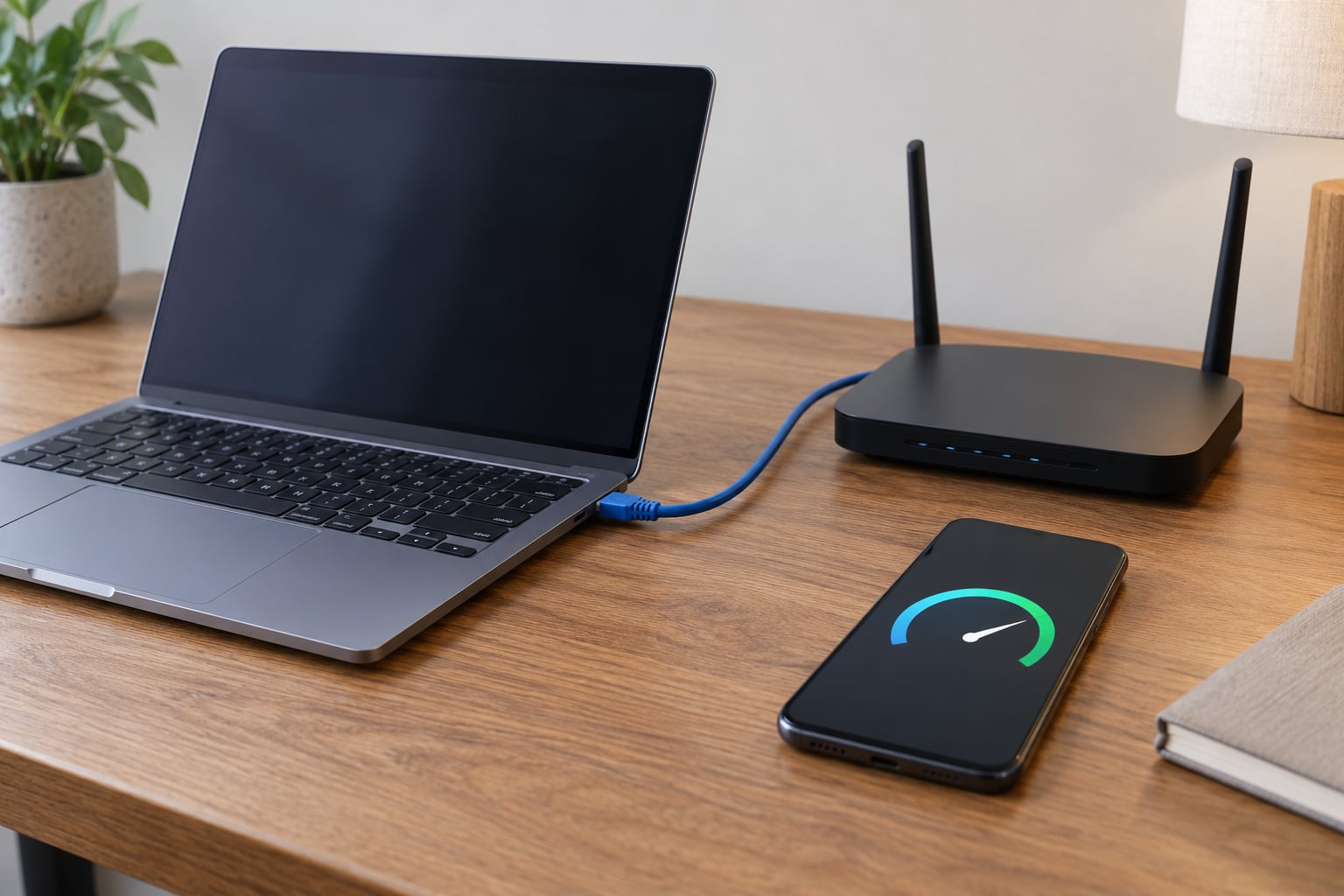
To test your internet speed accurately, pause every download and stream, connect by Ethernet if you can, run three tests at different times of day, and compare the median result with the speed your plan advertises. That takes about ten minutes and it is the difference between a number you can act on and one that just looks impressive.
Most disappointing speed test results are not a broken connection. They are a bad measurement: a paused video still pinging data, a phone testing on one bar of Wi-Fi in the next room, or a single run that happened to land on a busy server. Fix the setup and the number usually settles into a range you can trust.
This guide covers what to gather before you start, how to run the test properly, how to read download speed, upload speed, latency and jitter, and what to do when the number lands below your plan. It works the same whether you are on fiber, cable or DSL.
Table of Contents
- What You Need
- Step-by-Step
- Step 1: Prepare Your Connection
- Step 2: Choose a Reliable Speed Test
- Step 3: Run the Test and Read the Results
- Step 4: Repeat the Test at Different Times
- Step 5: Verify the Result and Troubleshoot
- Common Mistakes
- Frequently Asked Questions
- Why is my internet speed lower than the speed listed in my plan?
- Is 100 Mbps enough for streaming, gaming, and video calls?
- Should I test my internet speed with Wi-Fi or an Ethernet cable?
- Why do my internet speed test results change throughout the day?
- What download and upload speed should I aim for?
- When should I contact my internet provider about my speed?
- Conclusion
What You Need
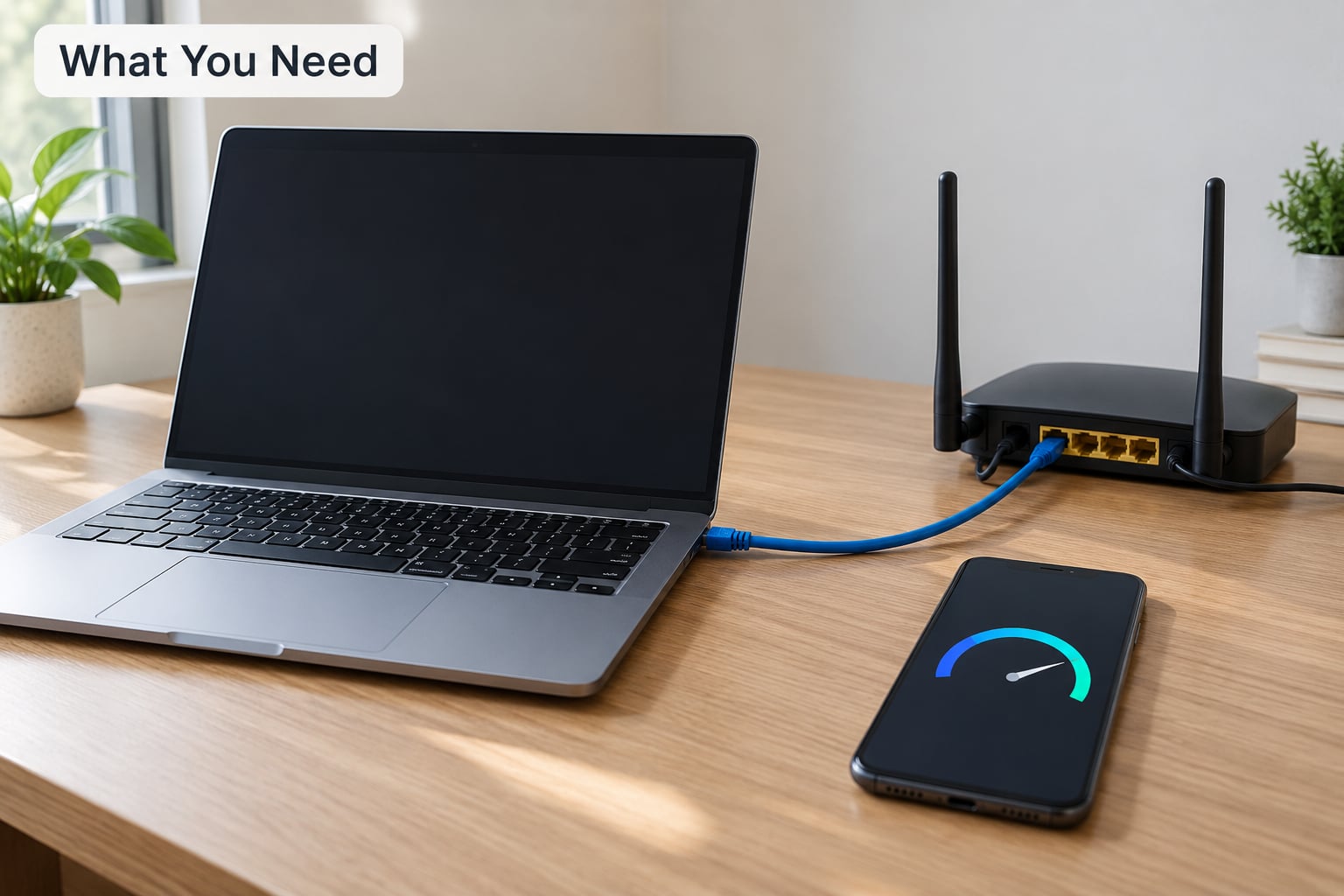
You need very little, but each item below removes a source of error, so gather them before you open a browser tab.
- A computer, not a phone. A laptop or desktop gives you a stable connection and a screen big enough to read the full results panel. Phones pick up background app traffic and often sit on a weak Wi-Fi band.
- A wired connection. An Ethernet cable from the computer to the router or modem is the single biggest accuracy improvement you can make. If you have no cable, a long one borrowed for the test is worth more than another run over Wi-Fi.
- A stable Wi-Fi setup. If you must test wirelessly, stay in the same room as the router, use the 5 GHz or 6 GHz band rather than 2.4 GHz, and know that the result measures your local network as much as your internet line.
- A speed test tool you trust. Speedtest by Ookla, Fast.com, the Cloudflare speed test or your provider’s own tool all work. Pick one and stick with it for repeat runs.
- Your plan speed. Write down the advertised download and upload numbers before you test. Without them, a result means nothing.
- Ten quiet minutes. Pause cloud photo backups, console and PC game updates, 4K streams, video calls and TV streaming. A paused video call still uses bandwidth.
If something is misbehaving, also grab a rough note of your router model, whether the router is yours or the provider’s, and when the trouble started. That context is what turns a test result into useful evidence later.
Step-by-Step
Step 1: Prepare Your Connection
Preparation is where most of the accuracy is won or lost. Stop every other device from using the network where you can: pause streaming on the TV, cancel the console download, and wait for system updates and cloud photo sync to finish rather than merely pausing the window.
On Windows 11, Task Manager’s Network column shows which process is moving data. On macOS, Activity Monitor’s Network tab does the same job. Check both once and you will often find the culprit within seconds.
Restart the modem and router, then give the connection a few minutes to settle and re-sync. A router that has been up for weeks accumulates connection state, and that state costs you throughput more often than people expect.
Finally, disconnect the VPN and any browser extensions that route traffic, then close every other tab. A VPN encrypts and re-routes your traffic, which usually shows up as a lower number and a higher ping.
Step 2: Choose a Reliable Speed Test
Use a browser-based test from a well-known provider, run from the same tool each time. Providers differ in what they actually measure, so mixing tools makes repeated numbers impossible to compare.
| Tool | What it measures | Best for |
|---|---|---|
| Speedtest by Ookla | Download, upload, ping, jitter and packet loss against a selected server | Repeatable comparisons; it also keeps a test history you can show your provider |
| Fast.com (Netflix) | Download heavy, based on a server the viewer actually streams from | A quick check of whether streaming quality will hold up |
| Cloudflare speed test | Download, upload, latency and packet loss against Cloudflare’s own network | Useful when an Ookla server looks congested, or you want a second opinion |
| Provider’s own tool | Whatever the provider’s network reports, often optimized for their own infrastructure | Their baseline; rarely the most neutral number |
Readers on broadband forums consistently report that the provider’s own tool returns the friendliest number and cross-checking two independent tools gives the truest picture. The fairest reading comes from whichever two independent tests agree.
Ookla picks a server by lowest ping rather than physical proximity, which is usually the right call, but you can also pick a server manually if you know one near your area. Then leave the server alone for all repeat runs.
Step 3: Run the Test and Read the Results
Run the test once to warm the connection, then run it again twice more with a short gap between runs. Look at four numbers rather than one.
| Metric | What it means | A reasonable value |
|---|---|---|
| Download speed (Mbps) | How fast data arrives at your device | Within roughly 10 percent of plan speed when wired and idle |
| Upload speed (Mbps) | How fast data leaves your device | Cable and DSL upload numbers are often far below the download figure |
| Latency (ms) | Round-trip delay to the test server | Under 20 ms is comfortable; under 50 ms is playable |
| Jitter (ms) | Variation between latency samples | Low and steady; large swings feel like stutter in calls and games |
| Packet loss (%) | Share of data that never arrives | Ideally zero; anything above a fraction of a percent shows up as freeze-ups |
One unit catches people out: Mbps is megabits per second, while MBps is megabytes per second. A tool showing 8 MBps is running at 64 Mbps, and apps that display speeds in MBps will appear eight times slower than the same transfer shown in Mbps.
Latency matters more than people expect. A 200 Mbps line with 90 ms of latency feels worse for gaming and video calls than an 80 Mbps line with 15 ms, because bandwidth only controls how much data moves at once, not how quickly each request is answered.
Jitter and packet loss are the numbers that explain “my speed test says 300 Mbps but everything is awful.” A steady high download speed with rising jitter is a network in trouble, not a fast one.
Step 4: Repeat the Test at Different Times
One run tells you almost nothing because numbers swing widely between attempts. Run three or more tests and use the middle result rather than the highest. The highest number is the one your provider will quote back at you; the median is the one that describes your experience.
Spread the runs across the day. One in the morning, one in the early evening when the network is busiest, and one late at night is a reasonable spread. Big evening dips point at congestion on your provider’s network. Consistently weak results at every hour point at your own equipment.
Compare over days, not minutes. Keeping a short log of date, time, download, upload, latency and jitter makes patterns visible that a single result hides, including throttling that kicks in after you pass a data allowance.
Experienced users on r/HomeNetworking and other broadband forums treat morning versus evening comparison as the standard technique for catching provider-side congestion, and it is the same method support teams will ask you to repeat.
Step 5: Verify the Result and Troubleshoot
Compare your median download figure against your plan. A small dip is normal: advertised speed is a theoretical maximum measured at the provider’s equipment, and cable providers often oversubscribe the line, so a plan of 300 Mbps producing 260 Mbps on a good day is unremarkable. A result below roughly 90 percent of plan speed when wired, idle and repeated is worth escalating.
Work through this order, stopping when the problem disappears:
- Test over Ethernet. If the wired result matches your plan, your line is fine and the fault is Wi-Fi coverage or a weak router. Move the problem to the access point.
- Test Wi-Fi in the same room as the router, on the 5 GHz or 6 GHz band. A big drop from the wired number confirms a local network bottleneck.
- Test again with other devices disconnected. A phone on 4K video or a console downloading can halve your result without you noticing.
- Restart the modem and router, then retest. This fixes a surprising share of cases and takes two minutes.
- Check the Ethernet link speed if you are wired. On Windows, run ncpa.cpl and read the Speed field. On macOS, open System Information and look at the Ethernet controller. A port negotiating at 100 Mbps points at a Cat5 cable, a damaged run or a faulty port, and 100 Mbps will cap a gigabit plan.
- Contact your provider with the evidence. Include the plan speed, the date and time of each test, the median result, latency and packet loss, and a screenshot from the tool you used. Ask them to run a line test from their side. If their own test passes and yours fails, the gap points to your router or internal wiring.
If the speed test looks healthy but your calls drop and streams buffer, the test is not the thing that is wrong. Suspect Wi-Fi at the far end of the house, router bufferbloat when the link is busy, or a plan whose upload speed is far lower than you assumed.
Common Mistakes
These are the errors that produce numbers you cannot trust, each with the correction.
- Testing while something else downloads. The most common self-inflicted error. A game update or photo backup can eat most of your bandwidth quietly.
- Testing on a phone over Wi-Fi. Phones on a weak signal produce numbers far below the plan and send people chasing a router fault that does not exist.
- Pausing instead of closing. A paused video call and a paused stream still hold connections and send periodic data.
- Repeating the test twice in a row. Back-to-back runs heat up the line and can read lower than the first attempt. Space runs out by a minute.
- Trusting a single number. Variance is normal. Three or more runs and the median is the honest figure.
- Comparing a Wi-Fi result with plan speed. You are measuring two networks at once. Compare wired to plan, then compare Wi-Fi to wired.
- Testing at the wrong time. A midday run can flatter you and an evening run can frighten you. Do both.
- Leaving a VPN running. It adds an encrypted hop and usually lowers throughput while raising latency.
- Mixing tools between runs. Different servers and methods produce different results. Change tools only when you deliberately want a second opinion.
- Reading MBps as Mbps. A factor of eight, and the reason some people think a fast connection is slow.
Frequently Asked Questions
Why is my internet speed lower than the speed listed in my plan?
Advertised speed is a theoretical maximum measured at the provider’s equipment, and cable networks are often oversubscribed. Expect results in the high 80s to low 90s percent of plan speed on a good day. A bigger shortfall usually means background traffic, a Wi-Fi bottleneck, old router hardware, or a faulty cable or port limiting the negotiated link speed.
Is 100 Mbps enough for streaming, gaming, and video calls?
For one to three people, 100 Mbps is comfortable for streaming in high definition, browsing, calls and cloud gaming. Upload speed matters more for video calls and photo backups, and on many cable plans that figure is far lower than the download number. Four or more people streaming in 4K at once is where 100 Mbps starts to feel tight.
Should I test my internet speed with Wi-Fi or an Ethernet cable?
Use Ethernet whenever you are trying to find out what your provider actually delivers. Wi-Fi measures your local network and your internet line together, so a low result tells you little about which one is at fault. Once you have a wired baseline, testing over Wi-Fi shows you how much coverage and band congestion are costing you.
Why do my internet speed test results change throughout the day?
Network traffic rises and falls as more people in your area use the same infrastructure, so evening hours are usually the slowest. On cable networks oversubscription makes this visible. Provider-side maintenance and throttling after a data allowance also change results. Running tests at a few different times reveals the pattern a single run hides.
What download and upload speed should I aim for?
Most households are comfortable with download speeds around 50 Mbps per person and upload speeds of at least 10 Mbps, with more upload needed if you make video calls or back up photos. Gamers care more about latency under 50 ms and low jitter than about raw speed. Work from home with several simultaneous users benefits from more of both.
When should I contact my internet provider about my speed?
Contact them once you have three or more wired runs, taken at different times, all below roughly 90 percent of your plan speed. Send the plan speed, the dates and times, the median download and upload figures, latency, packet loss and a screenshot. Ask for a line test on their side; if their test passes and yours fails, the problem is your router or internal wiring.
Conclusion
Start with the setup, not the test: pause background traffic, connect by Ethernet or sit next to the router on the 5 GHz band, then run three tests at different times of day and use the median. Compare that figure with your plan speed and read the latency and jitter alongside it. If you are still well short on a wired test, the troubleshooting order above tells you whether to blame your wiring, your router or your provider.