Laptop overheating happens when the processor and graphics chip make more heat than the fan, vents and heat sink can carry away, and the machine slows down or switches itself off. Most cases come down to blocked airflow, dust-packed vents, a failing fan or plain overwork, and you can fix them yourself in an afternoon.
The quickest way to protect your laptop from overheating starts with the cheap things. Move the laptop onto a hard desk with clear space around every vent, shut it down and blow the dust out of the openings, and drop the power mode away from High Performance. If the fan is silent or the chassis is too hot to rest a hand on, stop there and get it serviced.
Table of Contents
- What You Need
- Step-by-Step: How to Protect Your Laptop from Overheating
- Step 1: Give the Laptop a Cool, Open Workspace
- Step 2: Check and Clean the Air Vents
- Step 3: Reduce Unnecessary Background Work
- Step 4: Adjust Power, Fan and Display Settings
- Step 5: Use External Cooling and Accessories Carefully
- Step 6: Monitor for Signs That Need Professional Service
- Common Mistakes That Worsen Overheating
- Frequently Asked Questions
- Do laptop cooling pads actually work?
- What can I put under my laptop to keep it from overheating?
- Why do laptops overheat so easily?
- Is 92 degrees too hot for a laptop CPU while gaming?
- How often should I clean laptop vents, and can overheating damage it?
- Conclusion
What You Need
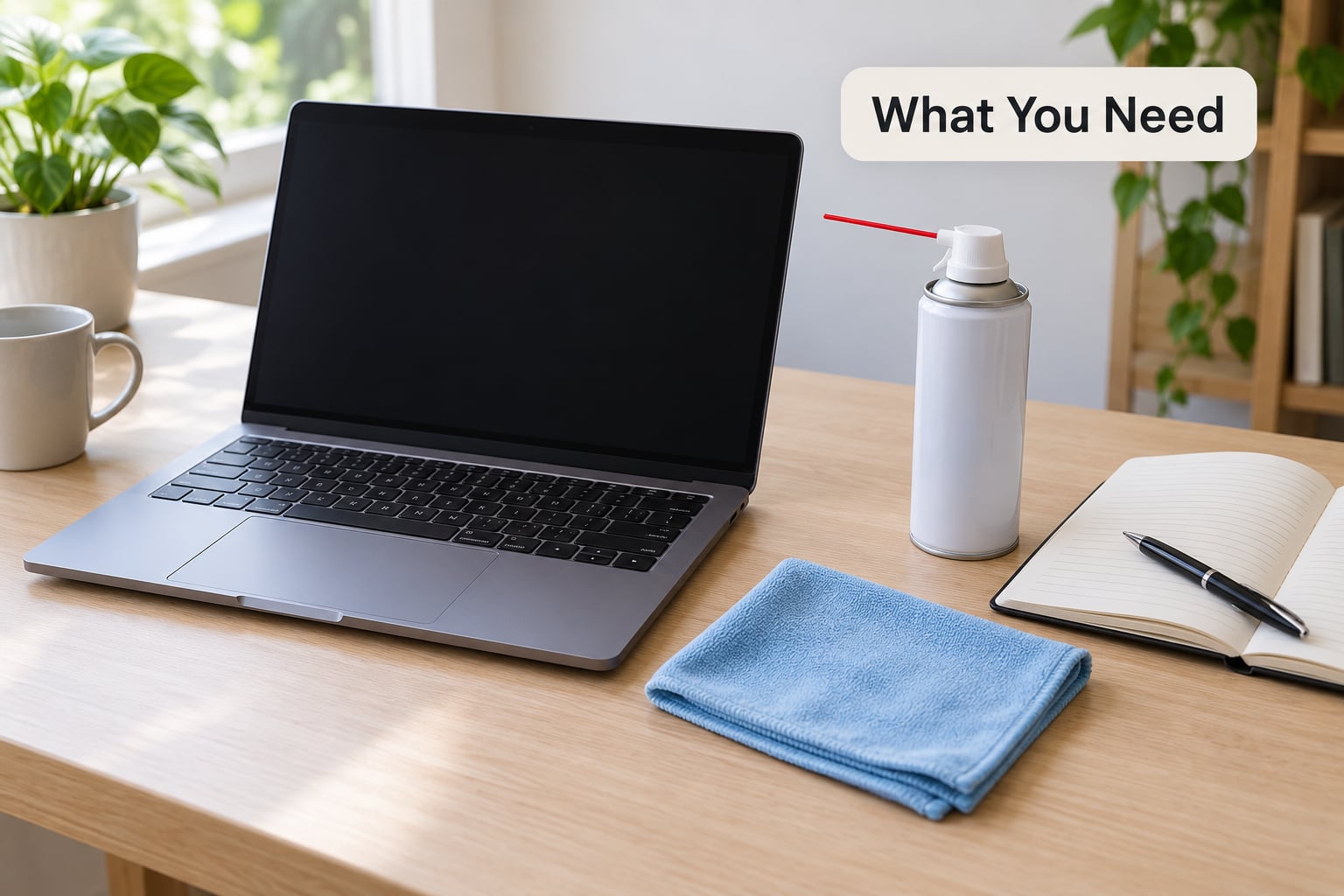
None of this is specialised equipment. You need a hard, flat desk or table with several centimetres of clearance behind and beside the laptop, a soft dry cloth, and a can of compressed air if the vents look dusty. A small vacuum with a brush head helps lift loose debris first, though you never put the nozzle inside a vent.
Keep the device manual or the manufacturer’s support page open. It tells you which openings are intake and which are exhaust, and on a business machine it may describe a fan profile you can change without opening anything. Bring the charger, because a few checks need the laptop plugged in, and a small flat-head or Phillips screwdriver only for the step that involves opening the bottom panel.
Before you start, save your work and shut the machine down fully rather than just closing the lid. Sleep mode keeps the fan logic active, and a fan spinning while you blow air into it can damage its bearing.
Step-by-Step: How to Protect Your Laptop from Overheating
Before you change anything, work out which problem you actually have. Overheating almost always follows one of five patterns, and the pattern tells you where to look.
| What you notice | Likely cause | Where to start |
|---|---|---|
| Hot only while gaming or rendering | Normal sustained processor load | Step 4 and Step 5 |
| Hot and fan loud even at idle | Background load, malware or clogged vents | Step 2 and Step 3 |
| Fan loud, then suddenly silent, then hot | Failing fan motor or seized bearing | Step 6 |
| Warm on battery, hot when plugged in | Charging and full-power mode kicking in together | Step 4 |
| Screen goes black and fans roar under load | Thermal throttling kicking in | Step 1, Step 2, Step 6 |
Step 1: Give the Laptop a Cool, Open Workspace
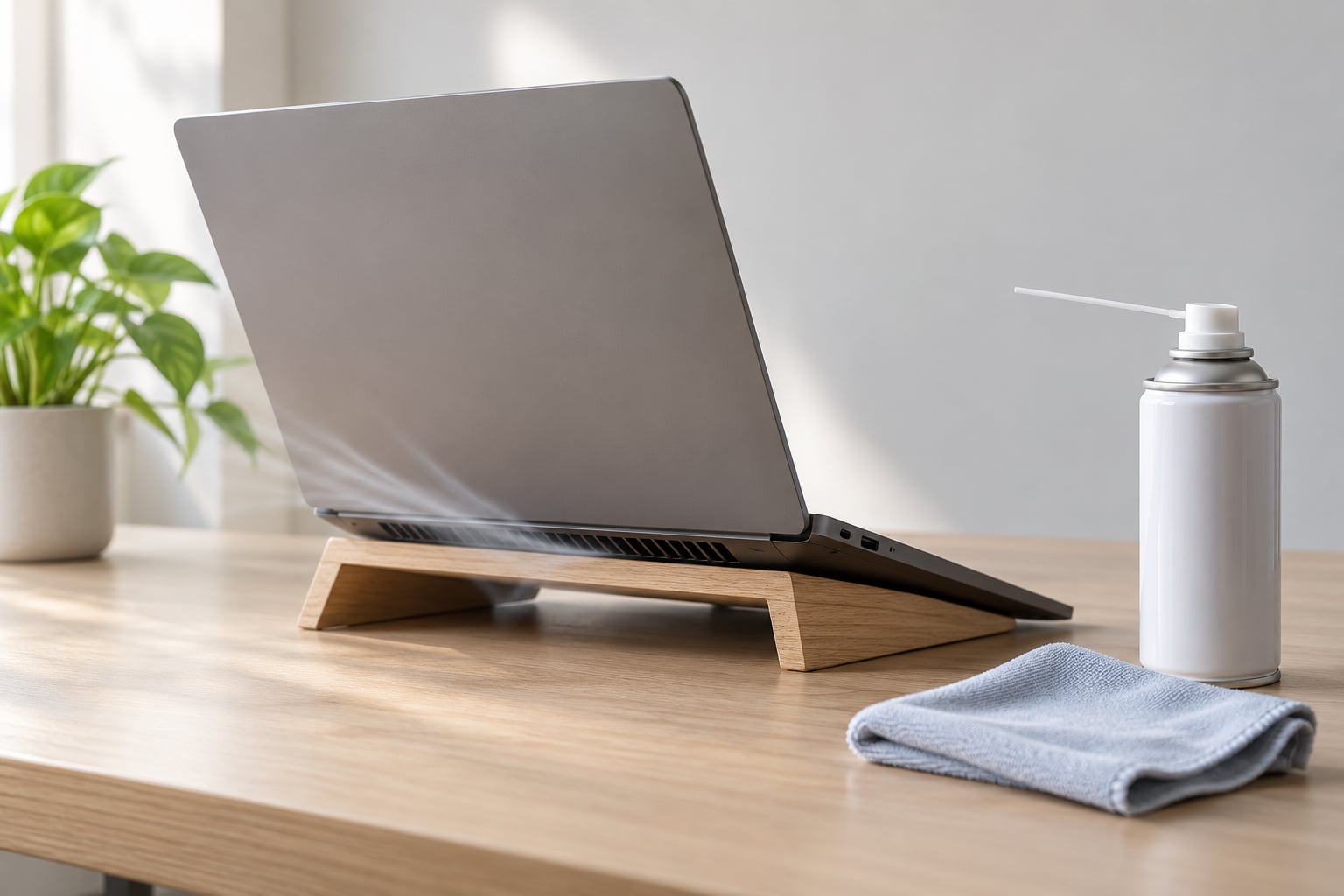
Heat can only leave through air moving past the openings, so where you put the machine decides a lot. Set it on a hard, flat desk with the rear raised a centimetre or two on a book or a stand, and leave space at every side so nothing presses against an intake grille.
Never work on a bed, a sofa, a blanket or your lap. Fabric blocks the underside intake and adds its own warmth, and a propped laptop left like that can overheat while nobody is watching. Keep the machine out of direct sunlight, and in summer work in the coolest, best-ventilated room you have rather than a stuffy one. That is how to protect your laptop from overheating before you touch a single setting.
Step 2: Check and Clean the Air Vents
Shut down and unplug the laptop, then find the intake and exhaust openings. Most machines draw air in through the bottom or the rear edge and push hot air out of a slot along the back or the sides, and the manual usually marks both.
Hold the can of compressed air upright, keep it about 10 to 15 centimetres away, and use short bursts rather than one long blast. Work from the outside in, so you loosen dust instead of driving it deeper into the heat sink. If you can reach a fan through a grille, hold the blades still with a thin plastic card so the airflow doesn’t spin the rotor at full speed.
Clean the underside and the keyboard gaps with a dry microfiber cloth. Skip the vacuum cleaner: static from the motor can kill components, and the suction pulls dust deep into the chassis where you cannot reach it. Do this every three to six months, or more often in a dusty, dry or pet-friendly home.
Step 3: Reduce Unnecessary Background Work
Open Task Manager with Ctrl+Shift+Esc on Windows and sort by CPU to see what is actually running. One browser with dozens of tabs, a video call left open, a stuck sync client and a background antivirus scan can together hold the processor near full load for hours without you noticing.
Close what you are not using, disable programs you never need at sign-in through the Startup apps tab or the Task Manager Startup tab, and uninstall software you abandoned long ago. On a Mac, open Activity Monitor from Spotlight and sort by CPU the same way.
Local AI workloads deserve their own mention. Running a language model locally, compiling code all afternoon or exporting a long video are heavier than most people expect. If the fan screams for a reason you cannot name, watch the top row of that list for ten minutes and the culprit usually names itself.
Step 4: Adjust Power, Fan and Display Settings
On Windows 11, open Start, go to Settings, then System, then Power and battery, and pick the Balanced power mode. For more control, search for Edit power plan, click Change advanced power settings, and under Processor power management set the maximum processor state to 85 percent. That single change takes the edge off a laptop that gets uncomfortably hot under load, at the cost of a little peak speed.
On macOS, open System Settings, then Battery, and switch Low Power Mode on. Dropping screen brightness and shortening the display timeout helps too, since the panel and the backlight are part of the heat budget.
Vendor tools go deeper. Lenovo Vantage, ASUS Armoury Crate, Dell Optimizer, HP Command Center and the Lenovo Legion zone app all expose a thermal profile, a quiet mode and a fan curve, and switching from Balanced or Quiet to Performance changes both noise and heat immediately. Use the sensor-heavy mode only while plugged in for a task with a deadline.
Keep drivers and firmware current as well. A graphics driver bug or an out-of-date BIOS can leave the fan curve miscalibrated, which is a common reason a machine starts overheating right after an operating system update rather than because the hardware changed. Rollback is not the answer: people who revert to an older Windows version to fix heat frequently report worse problems.
Finally, run a full antivirus scan and remove anything it flags. Malware that mines or repeatedly calls out to a server keeps a core busy at idle, and the fan noise gives it away.
Step 5: Use External Cooling and Accessories Carefully
A laptop stand or a cooling pad does two useful things: it lifts the rear so the underside intake gets clean air, and it pushes moving air across that intake. Both matter. A cheap foam pad that merely raises the back of the machine often does more than an expensive model with small fans, because the gain comes from clearance rather than from the pad itself.
Two limits are worth stating plainly. A cooling pad cannot clear a clogged vent or a dead fan, so it buys a few degrees on a healthy machine and nothing on a broken one. And pointed straight at a closed laptop for hours, a desk fan dries the air and pushes hot air back against the chassis. Give the machine a break instead.
Run local AI models, video exports and long compiles with the rear raised, in a ventilated room, with the charger disconnected if the battery is healthy and the task allows it.
Step 6: Monitor for Signs That Need Professional Service
Install a monitor such as HWiNFO64, HWMonitor or Core Temp so you can see CPU and GPU temperatures while you work instead of guessing from the noise.
| Situation | Comfortable range | Time to act |
|---|---|---|
| Idle, screen open | 35 to 55 C, roughly 95 to 130 F | Above 60 C idle, check background load |
| Browsing, documents, video calls | 45 to 70 C, roughly 115 to 160 F | Over 80 C sustained |
| Gaming, rendering, compiling | 70 to 88 C, roughly 160 to 190 F | Over 90 C sustained |
| Throttling threshold | about 85 to 95 C on most processors | Performance drops, this is the chip protecting itself |
Stop using the laptop and get it looked at if it shuts down or sleeps under load, if the fan is silent while the chassis is hot, if you notice a burning or chemical smell, or if the touchpad, the case or the trackpad surface starts to lift. That last one is a swollen battery, and it is the one fault you should never keep working around.
Vent cleaning, power settings and a cooler surface fix most complaints. When they do not, the usual causes are a worn thermal paste bond, a failing fan motor or a damaged heat sink, and those need a technician who can open the chassis. Many manufacturers permit opening the bottom panel for maintenance without voiding coverage, but check your warranty terms first, because some require authorised service for any case removal.
Common Mistakes That Worsen Overheating
Running the laptop on a lap, a bed or a cushion is the most common habit and the easiest to change. Fabric blocks the intake and traps heat against the underside, so the machine gets slower and hotter in exactly the way you did not intend.
Putting a vacuum cleaner nozzle against a vent looks like the fast version of cleaning and is the riskiest one. The suction pulls debris into the heat sink and the motor can build static that damages electronics. Compressed air, always upright and in short bursts, does the same job safely.
Leaving the laptop propped on a cushion or a stack of books while a desk fan blows at it for hours dries the machine and pushes warm air back at the case. A few degrees is the realistic gain from a cooling pad; more than that means something else is wrong.
Leaving the charger in while expecting quiet, cool operation also surprises people. Charging adds heat, and many machines run a higher power profile when they detect mains power, so a laptop that stays cool on battery can get hot within minutes of being plugged in.
Finally, rolling back the operating system or ignoring updates forever. A driver or BIOS update is often what fixes a fan curve that has drifted out of calibration, and going back to an older version has been reported to make heat and stability worse rather than better.
Frequently Asked Questions
Do laptop cooling pads actually work?
Yes, but modestly, and only when they improve airflow. A pad with larger fans typically cools a few degrees more than a plain foam riser, which often does the same job. It cannot clear a clogged vent, replace a dead fan or fix dried thermal paste, so treat it as comfort rather than repair.
What can I put under my laptop to keep it from overheating?
A hard, flat riser is the answer: a laptop stand, a sturdy book, or a cooling pad. Raise the rear by about a centimetre so the underside intake sees moving air, and never put the laptop on fabric. A folded towel works only as an emergency measure, since it insulates and blocks vents.
Why do laptops overheat so easily?
A laptop has a thin chassis and no room for the tower-sized coolers a desktop gets, so the processor and graphics chip usually share one small heat sink and one or two small fans. Heat only leaves through air moving past the vents, so any blockage, dust or extra load quickly outpaces that cooling system.
Is 92 degrees too hot for a laptop CPU while gaming?
It is high, and it usually means thermal throttling has started, which is why frame rates dip after the first few minutes. Sustained temperatures above about 85 to 90 C during gaming are worth fixing with airflow and power settings. A reading over 95 C, or any shutdown or smell, means stop and get it serviced.
How often should I clean laptop vents, and can overheating damage it?
Every three to six months for most homes, more often in dusty, dry or pet-heavy rooms. Heat damage is cumulative: sustained high temperatures shorten component life, wear the battery faster and eventually cause failures. Throttling usually protects the chip, but a machine that repeatedly shuts down under load is not protecting anything.
Conclusion
Move the laptop to a hard, open surface with the rear raised, close the programs you are not using, and blow the dust out of the vents with compressed air held upright. Watch a real temperature reading for a few days after those changes. If the fan stays loud, the machine shuts down under load, or the case starts to swell, stop using it and book a repair.