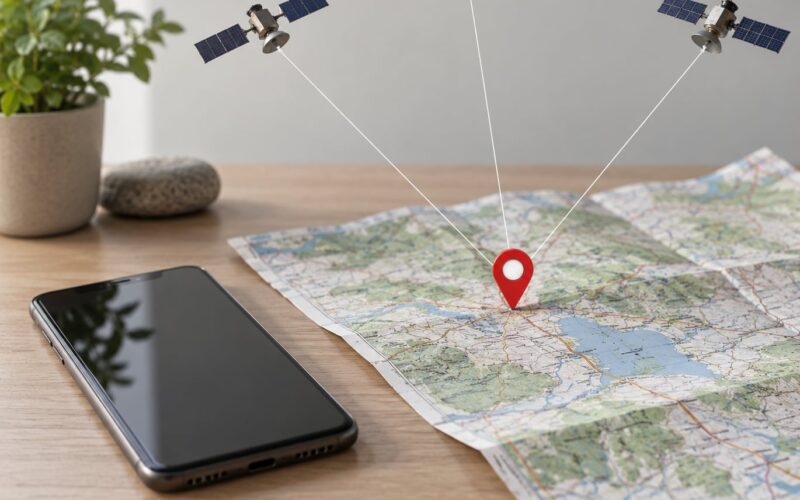
Reverse image search works by turning your picture into a mathematical fingerprint, then comparing that fingerprint against billions of images the search engine has already indexed. It finds exact duplicates, earlier versions, and visually similar scenes, and it hands you a list of pages where the image already lives. That is why it works: it answers a question a caption never does, namely whether this exact photo has been published before, where, and when.
The catch is that most people use the first result they see and stop. A good verification takes more than that. It takes two engines, a look at the earliest credible match, and a habit of asking what the results do not prove.
Table of Contents
- How Reverse Image Search Works
- How reverse image search works step by step
- What information can reverse image search find?
- How do search engines recognize the same image?
- How to verify the source of an online photo
- How to tell whether a matching result is the original
- Can reverse image search prove that a photo is fake?
- What are the limits of reverse image search?
- Which reverse image search tools should you use?
- Can you reverse-search any photo?
- What privacy risks should you know about?
- Frequently Asked Questions
- Does reverse image search work on edited photos?
- Can I use reverse image search to find the original of a social video?
- What does it mean if reverse image search finds no results?
- How do I search for the uncropped version of a photo?
- Can I verify a photo using only my phone?
- Conclusion
How Reverse Image Search Works
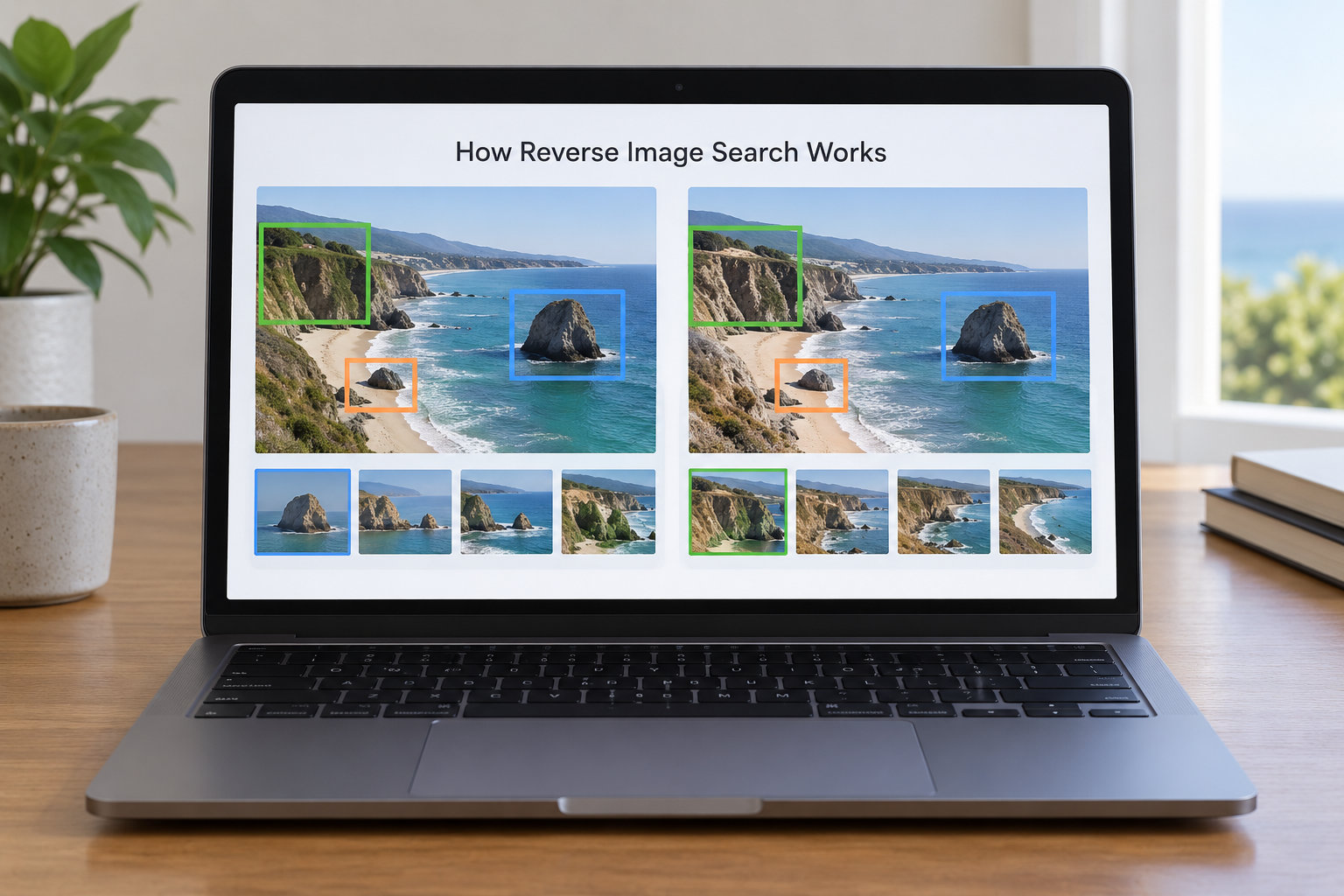
Two different mechanisms sit behind the same button. The first is matching known files: the engine compares your upload against images it has already crawled, looking for the same picture or a near-duplicate of it. The second is recognizing what is in the picture: the system identifies objects, scenery, text and faces, then retrieves images that contain the same things, even when nothing about the file itself is identical.
Both depend on an index. Whatever a service has never seen online, whatever sits behind a login, and whatever nobody has published cannot be found. That single fact explains most disappointing results.
So when you ask how reverse image search works for verifying photos, the honest answer is: it works as a duplicate detector and a discovery tool, and it fails silently on anything private, brand new or never indexed.
How reverse image search works step by step
- Submission. You upload a file, paste an image URL, or point the tool at a page and let it pick the image. Uploaded files give the engine more signal than a compressed screenshot.
- Feature extraction. The service reduces the image to a descriptor, usually a perceptual hash, plus colour, shape, texture and text signals. Two different files of the same scene can produce close descriptors.
- Index search. That descriptor is checked against the engine’s stored images. Cheap numeric matching runs first, then heavier visual comparison on the strongest candidates.
- Ranking. Results are ordered by how closely they match, then adjusted by context: the page, the caption, the date the page was first published, and where the image sits on that page.
- Presentation. You get lists, not verdicts. Exact matches, visually similar images, pages where the image appears, and the earliest indexed appearance are shown separately, and the boundaries between them are not always clear.
Text-based matches come from a different route entirely: the engine reads words in or near the image and searches those. That is why a screenshot of a headline can lead you to the article even when the picture itself is unrecognisable.
What information can reverse image search find?
Depending on the service, a useful search can surface duplicate copies of the same file, the earliest visible source of the picture, and follow-up coverage of the same event. It often finds the photographer’s portfolio, where the same work appears with a caption and a date, or a longer version of the shot with more of the scene around it.
It can also narrow down where the photo was taken, whether named people or products appear in it, and whether the file has been cropped, recoloured or overlaid with text. Not every service does every one of these. Google’s matching leans toward pages and related context, TinEye leans toward duplicate tracking, and Yandex is often the one that recognises a face or an unusual object.
How do search engines recognize the same image?
Exact matching relies on a fingerprint computed from the file itself. If you compress it, resave it, or alter even a few pixels, the fingerprint changes and an exact-match search may miss entirely. That is the first thing to understand about these tools: exact matches are about files, not about subjects.
Conceptual matching is looser. The system builds a description of what the picture contains, then looks for images sharing those features. A crop of a crowd can land next to the original wide shot. A grayscale screenshot can match a colour photograph. This is the mode that finds a source when a file-level match fails, and it is also the mode that produces misleading near-duplicates.
Several everyday edits weaken both signals. A screenshot shrinks the file and adds compression. Cropping removes the edges that anchored the match. Filters and watermarks shift every colour value. Text overlays confuse object recognition. Low resolution removes texture detail, which is a large part of what the descriptor is built from.
How to verify the source of an online photo
- Save the original file. Work from the largest, least compressed version you can get, not the one inside the feed.
- Run two engines. Pick different families of tool rather than two screens of the same one. Cross-checking is standard practice among people who verify images for a living.
- Read from strongest to weakest. Exact matches first, then pages containing the image, then visually similar. Similar results tell you about the subject, not the file.
- Open the earliest credible source. Ignore how a result looks and read what it claims: who published it, when, and with what caption.
- Compare dates. If the image predates the event it is supposedly showing, you have your answer.
- Check whether that page copied from somewhere else. One more search on the file name or the caption text often exposes a chain of reposts.
Dead pages are common, especially with news sites that replace stories. Search the archive, search the headline text, and search the photographer’s name instead. A big gap in attribution, where a page shows an image with no credit and no date, tells you the page is a reproduction rather than a source.
Conflicting dates are worth taking seriously but not worth panicking over. Publishing timestamps get edited, pages get republished under new dates, and social platforms show upload times that have nothing to do with when the event happened. When dates conflict, the deciding factor is usually whether a named human took the photograph and whether anyone else saw the same scene at the same time.
How to tell whether a matching result is the original
The oldest copy a search engine returns is not automatically the original. Crawlers miss pages, sites get deleted, and whole regions of the web stay unindexed. Treat earliest-found as a strong lead, not a verdict.
Look for the signals that a real source leaves behind: a named photographer or byline, a caption with specifics rather than adjectives, a publication date that sits before the copies, a file name that matches the story, and a page with links or context around the image. A canonical page that other outlets link to is a better candidate than a bare image file on a free host.
Then test the claim. Does the caption describe what you can see? Does the date make sense against the event? If the picture shows a protest in a city and the caption names a different country, you have found a misattribution, not a source.
Can reverse image search prove that a photo is fake?
No. It can prove that a picture was published before, that it came from a stock library, or that a version of it was altered. On its own it rarely proves deception, because a genuine match says nothing about the caption attached to it or the moment it was posted.
A blank result is equally ambiguous. It means the image is not in the index, and an AI-generated picture, a genuine breaking-news photo, and a screenshot from a private group chat all produce that same blank. For video, pull still frames and search them. For a file you already hold, read its metadata. And for anything consequential, look for a second human source.
What are the limits of reverse image search?
The index is the ceiling. Private chats, paywalled pages, deleted posts, platform accounts that require a login and content that was never published publicly are all invisible. Beyond that, you have visually similar images that merely resemble the subject, and generative edits that preserve familiar content closely enough to still match the original.
| Result type | What it tells you | What it does not tell you |
|---|---|---|
| Exact match | Same file or near-identical copy is published somewhere | Whether the caption attached to it is honest |
| Pages with this image | Where the picture has circulated and how it was captioned each time | Which page was first, since the earliest found may not be the earliest published |
| Visually similar | What the subject looks like elsewhere, useful for spotting stock images | Anything at all about this specific file |
| Text-based match | Pages containing the same words, such as a matching headline | Whether those pages use the same photograph |
| No results | The image is not in that service’s index | Whether the image is real, edited or generated |
Which reverse image search tools should you use?
No engine wins every case. They index different parts of the web and weight different signals, and their interfaces change more often than their underlying behaviour.
| Tool | Best for | Strength | Weakness |
|---|---|---|---|
| Google Lens | General verification and finding related pages | Large index, useful context panel and date filtering | Often leads to visually similar images instead of the earliest source |
| Bing Visual Search | A second opinion on difficult images | Different index, so it surfaces pages Google missed | Fewer controls for sorting by earliest appearance |
| TinEye | Duplicate tracking and spotting edited versions | Shows where a file has been reused and how often | Smaller index, so misses many news and social posts |
| Yandex Images | Faces, objects and unusual scenes | Strong at recognising people and matching similar compositions | Interface and result quality vary by region |
| Safari Visual Look Up | Quick checks on an Apple device | Built into the browser, no extra step | Limited sorting and little history of matches |
Availability and features vary by platform and change over time, so treat this as a starting lineup rather than a ranking. Run the same image through two services before you decide anything.
Can you reverse-search any photo?
You can submit almost any file, but you will not always get an answer. Small screenshots, heavily filtered images, faces seen only from an unusual angle, text embedded in a photo and anything that has never been indexed are the usual failures.
Four habits fix most of them. Search the full-resolution original rather than the compressed copy. Crop tight around the distinctive element, a sign, a logo or a face, and search that region on its own. Split a busy scene into separate identifiable pieces and search each. And give the engines a second and third attempt before concluding the image is untraceable.
When nothing comes back, check the metadata of the file you already have. Original camera data can carry a capture time and, on phones, location coordinates that no search engine can supply.
What privacy risks should you know about?
Uploading is a disclosure. The file goes to a third party, and depending on the service it may be stored, processed for its own models, or shared with partners. Faces, home interiors, vehicle plates, ID documents, children and screenshots of private conversations are all exposed the moment you press the button.
Before uploading anything personal, crop out what does not matter to the search. Use a service with published retention and deletion terms where you can. Do not assume that deleting the search, or even your account, removes every stored copy. If the image is genuinely sensitive, do not upload it at all.
Frequently Asked Questions
Does reverse image search work on edited photos?
Usually, but it depends on the edit. Colour filters, added text, watermarks and compression all change the signals the engine relies on, so an exact match may disappear while a visually similar search still succeeds. Cropping out the original edges and heavy retouching are the worst cases. If a direct upload returns nothing, crop a distinctive region and search that separately, then try a second engine before drawing any conclusion.
Can I use reverse image search to find the original of a social video?
Yes, by searching still frames rather than the video file. Pause on a frame showing a face, a sign, a building or any other distinct detail, capture it, and run that image through a reverse image search. Search two or three separate frames, because one of them is often traceable even when the others are not. Account screenshots, re-edits and platform compression all make the direct approach unreliable.
What does it mean if reverse image search finds no results?
It means only that the image is not in the index of the service you used. That covers genuine breaking-news photos, private posts, deleted pages, paywalled articles and AI-generated images, which often return nothing at all. A blank result is not proof the picture is real. Try a second engine, crop a distinctive region, search text visible in the image, and check the metadata of the file you already have.
How do I search for the uncropped version of a photo?
You rarely get it by searching the whole cropped image. Instead, pick the most identifiable part of the scene, a logo, a street sign, a licence plate or a distinctive building, and crop that region as tightly as you can before searching. Conceptual matching works better on a small, clear subject than on a full frame full of clutter. If the platform shows only compressed files, save the original from the source page instead.
Can I verify a photo using only my phone?
Yes, though the controls are thinner than on a desktop. Long-press an image in most mobile browsers to reach Google Lens, or use the camera icon in Google Images to upload a file from your gallery. TinEye and Yandex both have mobile upload options as well. For date sorting and the full match history, opening the results on a computer is worth the extra step before you publish or share anything.
Conclusion
Start with the clearest, highest-resolution file you can get, not the compressed version in the feed. Run it through two different engines, read exact matches before similar ones, and open the earliest credible source to check the date, the caption and the byline. If nothing comes back, crop a distinctive region, try again and read the file’s metadata. Corroborate with a second human source before you share the picture or treat it as evidence.